 Ananda Arasu
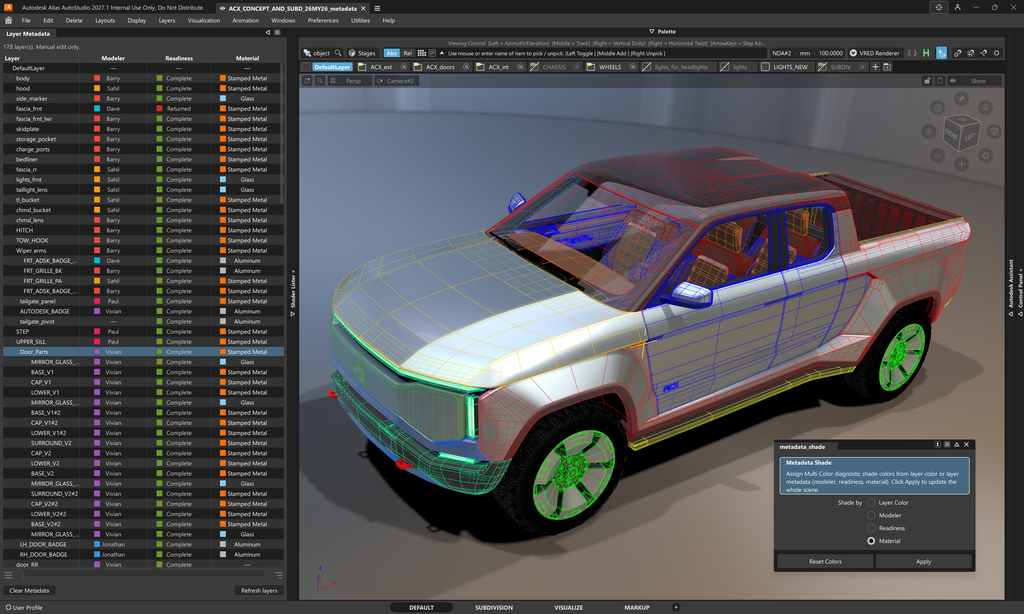
Alias users understand the power of Alias for design, but there has always been a desire to be able to access functionality more directly, so they could build their own workflows for their needs. Our 2027.1 release, available today, makes that possible, adding more depth to modeling and visualization along the way. Here is a quick overview of what’s new in this point release.
Our new Python wrapper for plugins
Alias now has a Python wrapper to access our API. So this means you can use Python to access functions in Alias, without needing to use C++, as in the past. You can use AI in conjunction with the Python API to create new plugins, as you will see from the example below.
For more in depth information about the API, watch for our detailed blog post coming in the next few weeks.
Variable Crease
For as long as Alias has had subdivision modeling, an edge has had exactly two states, creased or not. 2027.1 introduces a third option: however much you want. Select your edges and dial in a crease value interactively, right in the viewport, for smoother, more sculpted transitions without rebuilding geometry from scratch.
Two render engines, one set of colors
If you’ve ever set a material’s color in Alias, set it again in VRED, and hoped the two matched, this one’s for you. Diffuse, specular, reflectivity, and roughness now sync automatically between the Alias and VRED renderers. Set it once in Alias and it carries through, including downstream to VRED-based tools like CATIA. For teams automating their pipeline, the sync is scriptable through the same Python API covered above.
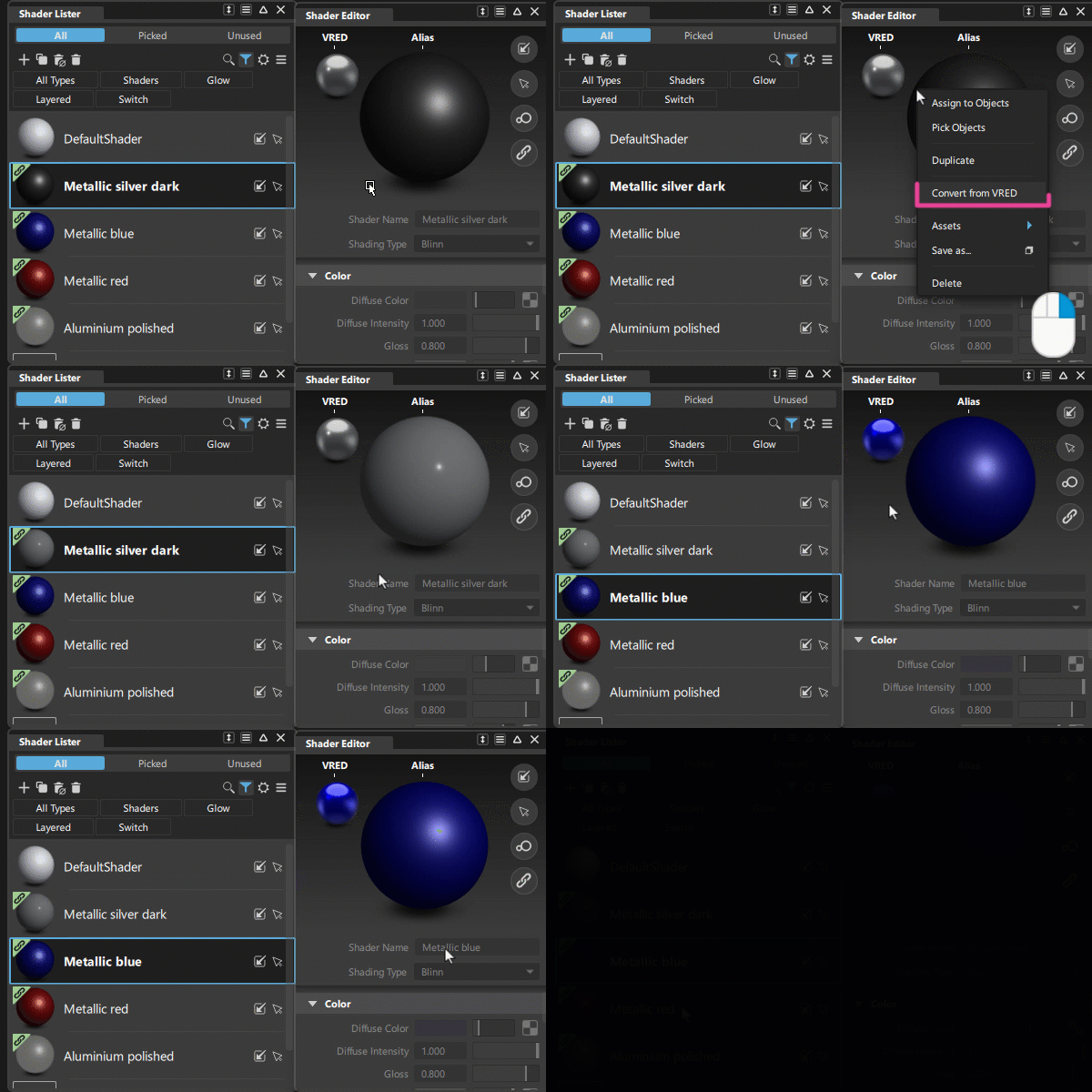
One caveat though, this sync doesn’t yet extend to more complex material types like Substance, MaterialX, MDL, X-Rite and OCS.
A Few More Visualization Updates
Two smaller changes round out visualization in this release. A new Embed VRED Assets option in Save As lets you choose whether linked VRED assets are stored inside the wire file. It’s on by default, but turning it off keeps those assets external and cuts file size, as long as they’re available on disk.
Autodesk Alias MCP Server (Public beta)
The Autodesk Alias MCP server is now available in public beta. The MCP server runs locally and acts as a bridge between the application and AI Assistants like Claude and Cursor. You can read more about the MCP Server and what this means on our dedicated blog post coming out soon.
AI help built into Alias
Use Autodesk Assistant to get answers to plain-language questions, like “how do I measure a gap between two surfaces”. Answers are grounded in official Alias documentation rather than a general web search. However, Assistant doesn’t stop there. You can use it to do certain tasks, which it does by running API calls itself in the background, moving from telling you how to do something to just doing it. It won’t, however, build curves or surfaces for you yet, so please note.
Find out more about Autodesk Assistant and how it works in Alias in a dedicated blog post coming out next week.
Bring Blender Work Straight Into Alias
More design teams are doing early concept and SubD work in Blender, and until now getting that work into Alias meant a lossy trip through FBX or OBJ, followed by cleanup. Alias 2027.1 adds native import of Blender (.blend) files, with no Blender installation required. Your SubD models come in with their crease weights intact, and your layers and colors stay organized the way you left them.
This release also updates import support for the latest CATIA, NX, Creo, and SolidWorks formats.
Live Referencing, Now on Autopilot
Getting referenced data into VRED used to mean pre-translating it by hand. A new Auto-Generate References option in the Live Reference menu creates and maintains that data for you, so referenced assemblies and geometry are ready in VRED and stay in sync. Refreshed status icons also show at a glance whether your data is synced, waiting to sync, or has VRED overrides.
Check it out for yourself
This is just a quick overview of what’s new in Alias 2027.1. To get more in-depth information about each of these topics, and others, check out the Help pages for Alias 2027.1 here. Reach out to your local Autodesk team to see it in action, and if you are a subscriber, feel free to download it today to try it for yourself.
This post was developed using a blend of human expertise and AI tools supporting the research and drafting. Our team shaped, edited, and fact-checked the final content to ensure accuracy and alignment.
Check out Autodesk Automotive on LinkedIn and visit the Design Studio YouTube channel for product updates, resources, and more.