 Autodesk Media & Entertainment
AI has made it easier than ever to generate compelling assets. In just a few prompts, you can create characters, environments, animations, and more. But generating assets is only the beginning. Turning those pieces into cohesive scenes — shaping performances, directing camera movement, and refining the final shot — too often means jumping between disconnected tools and workflows.
That’s why we’re introducing 3D Editor + Canvas in Autodesk Flow Studio: a new central workspace where worlds, characters, animations, cameras, and scenes come together in one connected environment. Instead of treating AI generation, scene building, and refinement as separate steps, Flow Studio now supports a complete creative workflow. From first idea to final shot, without leaving the app.
Storytelling has always been about more than generating ideas. It’s about shaping them into something meaningful. For decades, Autodesk has built tools that help creators make those decisions across film, television, and games. With 3D Editor + Canvas, that same thinking now extends into AI-powered storytelling.
It’s a shift from prompting to directing. Step into 3D when you need greater control over composition, camera movement, and storytelling, or stay in a fast, intuitive 2D workflow when speed matters. It’s AI you control.
One place where ideas come together – build AI scenes from characters, worlds, and animations
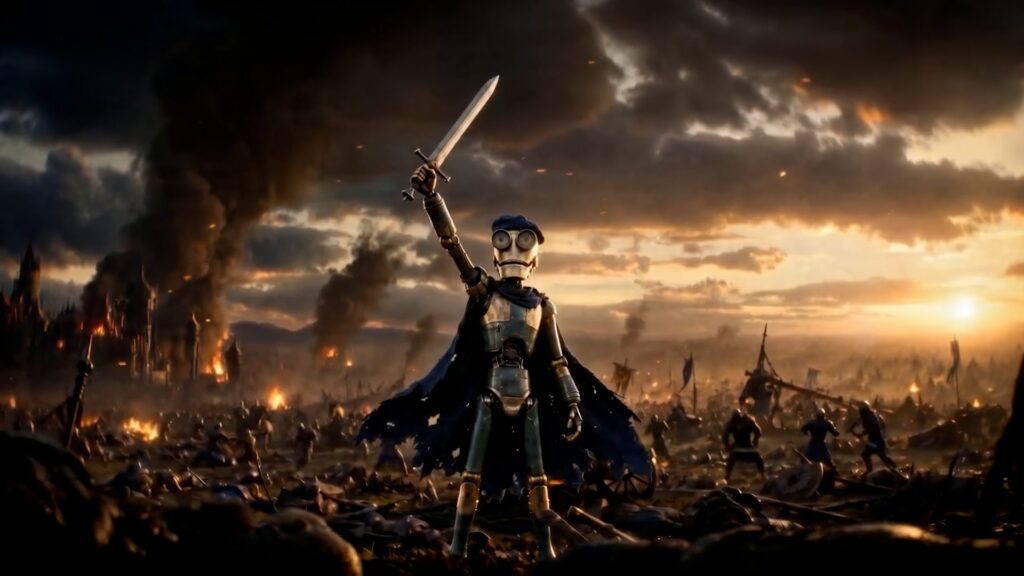
Visual storytelling rarely begins and ends in the same tool. Characters are generated in one place, environments in another, animations somewhere else, leaving creators to spend more time stitching disconnected workflows together than making the creative decisions that bring a story to life.
3D Editor + Canvas changes that. Characters, worlds, animations, camera movements, and other scene elements come together in one controllable CG scene, from a single workspace built for scene building, shot design, rendering, and refinement. The workflow begins in 3D Editor, where scenes take shape in a fully editable 3D environment, then moves into Canvas, where you generate, refine, and iterate on shots with node-based AI workflows powered by leading image and video generation models.
Build and direct editable AI scenes with 3D Editor
At the heart of this workflow is 3D Editor, a dedicated workspace where worlds, characters, animations, and camera movements come together in a fully editable 3D environment. Instead of working with AI-generated assets in isolation, you can assemble complete scenes, shape performances, and explore creative directions with more control than prompt-based workflows allow — bridging the gap between generation and direction.
Assemble the scene
Every story needs a setting. Generate an environment from a text prompt, reference image, multiple images, videos, or choose one from the Explore library or your existing assets. From there, add generated and rigged Wonder 3D characters or predefined assets, apply animations to bring performances to life, and use intuitive scene-editing tools to position, rotate, scale, and arrange every element until the composition feels just right.
Direct every shot
Once the scene comes together, it’s time to think like a director. Create Global Cameras for independently framed shots that move freely through your scene, or Relative Cameras that stay connected to a character as they move, making dynamic tracking shots easier to build. Add keyframes to build camera tracks, refine movement, and explore different setups while keeping precise control over framing, motion, and composition. Whether it’s a dynamic action sequence or a quiet cinematic moment, 3D Editor gives you the tools to shape every shot with intention.
Refine the sequence
The Timeline brings every creative decision into one place. Review animations, manage cameras, navigate keyframes, preview your sequence, and refine pacing before moving into Canvas. As ideas evolve, compare camera setups, adjust timing, and iterate until every shot is ready.
Render and refine AI scenes with Canvas
Once you’ve built and directed your scene, Canvas turns it into polished creative output. Move from 3D Editor into a flexible 2D workspace where scenes are rendered, refined, and further developed — no starting over.

Build on your creative direction
This is the payoff of directing in 3D first: Canvas builds on the work you’ve already done, so there’s no need to recreate a scene every time you want to explore a new idea. Generate and refine images and videos and compare creative variations, all while preserving the scene structure, camera work, and visual direction you established in 3D Editor. The result is a workflow that carries you from concept to polished content without sacrificing creative intent.
Explore with leading AI models
Canvas gives you access to leading AI image and video generation models, so you can choose the right one for each task. Explore concepts, generate production-ready imagery, edit existing content, or create cinematic video all from the same node-based workflow. Compare results, branch creative directions, and keep refining.
Stay in your creative flow
Rendering and generation run in parallel through a built-in processing queue, so you can keep building or refining other work while jobs run in the background — staying focused on creating rather than managing tools.
More control, more possibilities
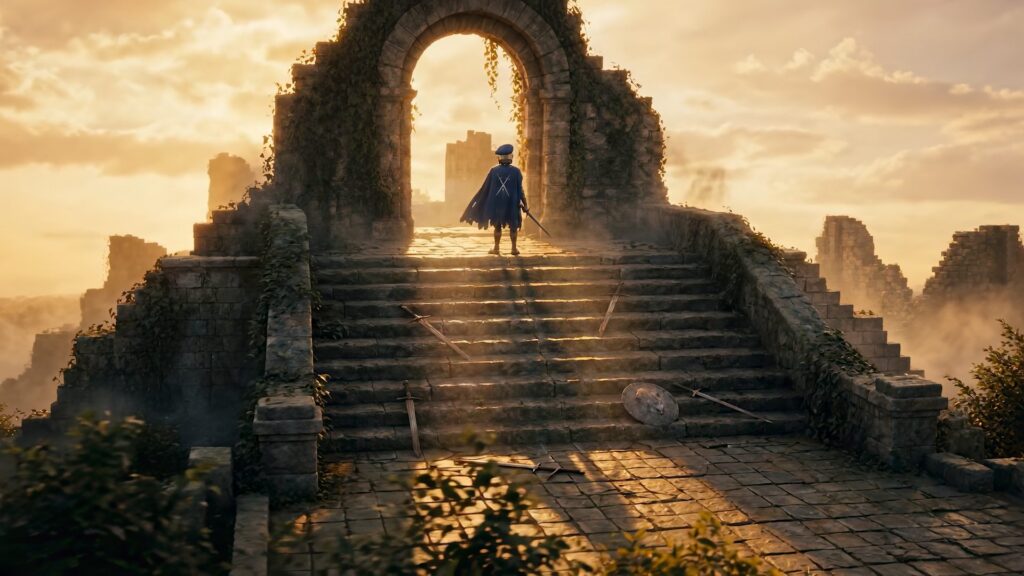
Creating with AI is no longer just about generating assets. It’s about the freedom to build those assets into scenes, direct the story you want to tell, and refine every shot until it matches your creative vision.
With 3D Editor and Canvas, Autodesk Flow Studio brings those steps into one workflow. Build and direct in 3D Editor, then move into Canvas to render, refine, and explore. It’s AI you control.
Whether you’re visualizing an idea, pitching a concept, creating content for clients, or producing a cinematic sequence, choose the workflow that fits: stay in 2D when speed matters, step into 3D when you need greater control. Spend less time moving between tools and more time bringing your ideas to life.
Ready to build your next story? Explore 3D Editor + Canvas in Autodesk Flow Studio today.
Frequently asked questions (FAQs)
Most AI tools generate individual images or videos, but making creative changes often requires starting over with new prompts. Flow Studio’s 3D Editor + Canvas provides a more connected workflow. You can assemble editable scenes, direct camera movement, animate characters, and then refine your work using multiple AI image and video models—all while preserving the creative decisions you’ve already made. This helps reduce repetitive prompting, speeds up iteration, and gives you greater creative control from concept to finished shot.
Yes, Flow Studio lets you generate AI-powered 3D characters using Wonder 3D’s Text to 3D and Image to 3D tools. Characters can be automatically rigged, added directly into 3D Editor scenes, animated, positioned, and combined with environments and cameras. Once your scene is assembled, you can continue refining and rendering it in Canvas using leading AI image and video generation models.
3D Editor and Canvas work together but serve different purposes. 3D Editor is where you can build and direct editable 3D scenes by arranging characters, environments, animations, cameras, and timelines. Canvas is where those scenes are rendered, refined, and further developed using node-based AI workflows and leading image and video generation models. Together, they combine the precision and control of 3D scene editing with the speed and flexibility of 2D workspace. Learn more about the future of Flow Studio from Wonder Dynamics founder Nikola Todorovic.
Yes, 3D Editor + Canvas is a strong choice for previsualization (previs), allowing indie filmmakers, animators, game creators, and content creation teams to quickly assemble scenes, block camera angles, test character performances, and explore different creative ideas before final production. Because scenes remain editable throughout the workflow, you can iterate rapidly as ideas evolve without rebuilding everything from scratch.
Yes, Flow Studio is designed for creators with a wide range of experience levels. Beginners can stay in Canvas to quickly generate and refine content using AI-powered workflows, while more experienced users can take advantage of 3D Editor for greater control over cameras, animation, scene composition, and storytelling.
3D Editor + Canvas are available in all Flow Studio subscription plans. Available features, AI models, usage credits, and generation limits may vary depending on your subscription tier. Visit this page for the latest plan details and feature availability. Students and educators are eligible for free educational access to Flow Studio through Autodesk’s Education plan, which provides qualified users with access to professional Autodesk software for learning and teaching
Yes, Flow Studio’s 3D Editor gives you control over camera movement and shot composition. You can create freely moving Global Cameras for independently framed shots or Relative Cameras that follow characters through a scene. Keyframe camera movement, adjust framing and timing, build dynamic camera tracks, and experiment with multiple shot setups to achieve the cinematic look you’re after.
Yes, one of the biggest advantages of Flow Studio is that it lets you build complete, editable scenes rather than generating isolated AI videos. You can combine AI-generated characters, environments, animations, cameras, and other assets into a single controllable 3D scene, then render and refine the final output in Canvas. This connected workflow helps you save time by reducing repetitive prompting and eliminating the need to rebuild scenes for every creative change, giving you far more flexibility to iterate, direct, and reuse your work across multiple shots and projects.