 Autodesk Media & Entertainment
Ideas don’t wait for the right tool to open. Now you can start creating whatever you’ve been dreaming up in 3D, right in ChatGPT.
Flow Studio MCP is now in ChatGPT, bringing 3D asset generation capabilities into the conversation. Start with a text prompt or reference image to create a character for your next tabletop campaign, explore a product idea that you can 3D print, or design props for your next video game, all without having to open another app.
Your first result is just the starting point. Refine your models, preview your work, and find your creations in your Flow Studio library when you’re ready to take them further.
Wherever your ideas start, you can create in 3D.
Create 3D models in ChatGPT with Flow Studio
Add the Flow Studio plugin to ChatGPT, then choose how you want to get started: generate an image, create a 3D model, or refine one you already have.
- Text to Image: Have an idea but no reference? Describe it and generate an image to help you picture it.
- Text to 3D: Describe a character, creature, or object and generate a 3D model.
- Image to 3D: Got a sketch or illustration? Use it as the starting point for a 3D model.
- Remesh: Adjust a model’s polygon count and topology, whether you’re working with a draft or an existing model.
- Retexture: Give an existing model a fresh look using a text prompt or reference image.
You can also ask ChatGPT to find earlier creations in your Flow Studio library, check on a generation in progress, or get a download link when your asset is ready.
Need a little inspiration? Try these prompts
Not sure what to make first? Here are just a few ideas to get you started. Experiment with different descriptions, add reference images, or try something unexpected. And if you’re feeling stuck, you can always ask ChatGPT to help you brainstorm ideas or fine-tune your prompts.
For game developers: Give your world a little personality
A potion sitting on a dusty shelf. A peculiar collectible hidden behind a waterfall. A mysterious object that makes players wonder what happened there.
Sometimes it’s the smallest details that make a game world feel worth exploring.
With Text to 3D, you can describe an object and generate up to four draft variations at a time to explore different directions.
Try this prompt:
“@Flow Studio Create a stylized 3D potion bottle for a fantasy adventure game. Give it a rounded shape, cloudy purple glass, a worn cork stopper, and small brass details. Make it look slightly magical and handcrafted.“
Once you’ve chosen a favorite, you can take it a step further with Remesh. For example, you might want to adjust the polygon count before bringing the asset into your game development workflow.
Try this follow-up prompt:
“@Flow Studio Remesh my potion bottle model to 20,000 triangles while keeping its overall shape.”
When you’re happy with the result, download your model and continue working on it in your preferred 3D software.
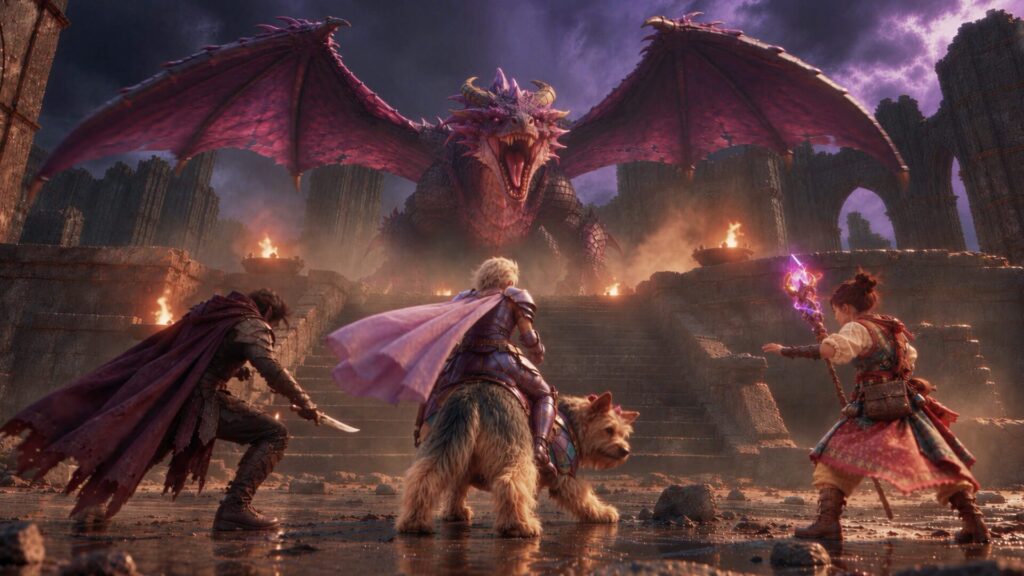
For product designers: See your jewellery idea take shape
You’ve sketched out a ring with an unusual silhouette. Maybe the band twists in an unexpected way, or the gemstone sits just a little off-center. It looks promising on paper, but you’re curious how it might look in 3D before casting.
With Image to 3D, you can upload your sketch and generate a model to explore the design beyond the page.
Try this prompt (with a reference image attached):
“@Flow Studio Use this jewellery sketch to generate a 3D model of the ring. Keep the asymmetrical band, curves, and oval gemstone setting, with a polished silver finish.”
You can use the result to get a better sense of the shape and proportions before moving into more detailed design work.
Pro tip: Flow Studio Pro users can use the Export to Fusion button in-app to bring their model directly into their 3D printing workflow, where they can refine the design and prepare it for the real world.
For filmmakers: Give an old prop a new story
You’ve found the perfect 3D prop for your scene, but it looks a little too pristine for the world you’re building.
Maybe it’s supposed to be a centuries-old artifact, something that’s survived countless adventures and has the scratches to prove it.
With Retexture, you can give an existing model a different appearance without starting over.
Try this prompt:
“@Flow Studio Find my mechanical compass model [insert Model file name] and retexture it with aged bronze, worn engraved details, and subtle green patina. Make it look like an ancient artifact discovered in a forgotten temple.”
Once you’re happy with the result, you can find the updated asset in your Flow Studio library and bring it into 3D Editor to use in your scene.
For character designers: Meet your next creation
Maybe you’ve got a character in mind, but you’re still figuring out what they look like. Are their ears too big? Is their silhouette recognizable? Would moss-covered antlers be a little much? (We vote no.)
You can start by generating a reference image, then use Image to 3D to see how your character translates into a model.
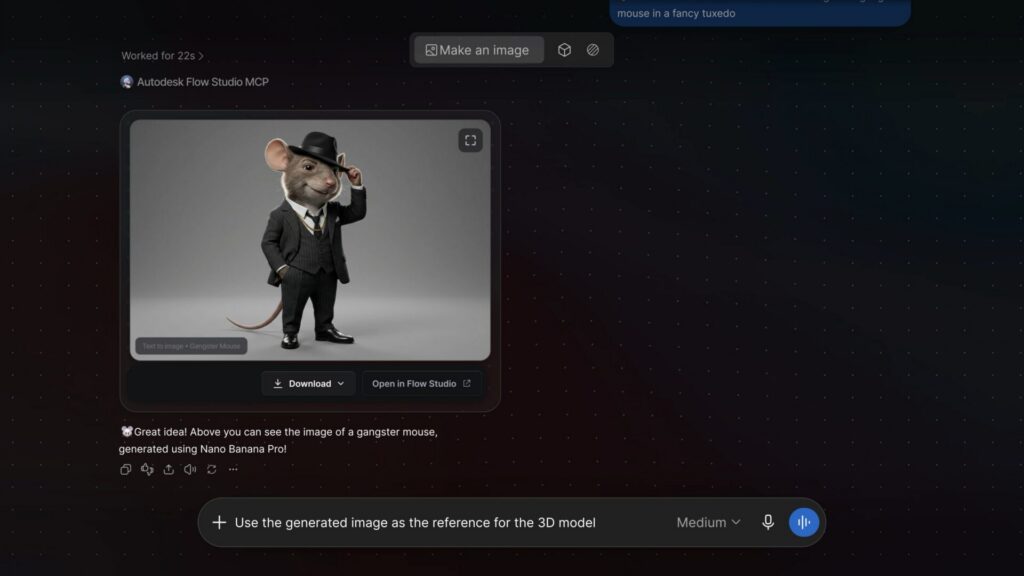
Try this prompt:
“@Flow Studio Create an image of a small, curious forest creature with oversized ears, moss-covered antlers, and a round body. Give it a whimsical, storybook-inspired design.”
Once you’ve found a look you like, follow up with:
“@Flow Studio Use this image to generate a 3D model of the creature, keeping its distinctive silhouette and key design details.”
Now you’ve got a character concept you can continue developing in 3D.
How to connect Autodesk Flow Studio MCP to ChatGPT
Ready to try it yourself? You’ll need a ChatGPT account and an eligible Autodesk Flow Studio account (paid plans). Generating or refining assets also requires available Flow Studio credits.
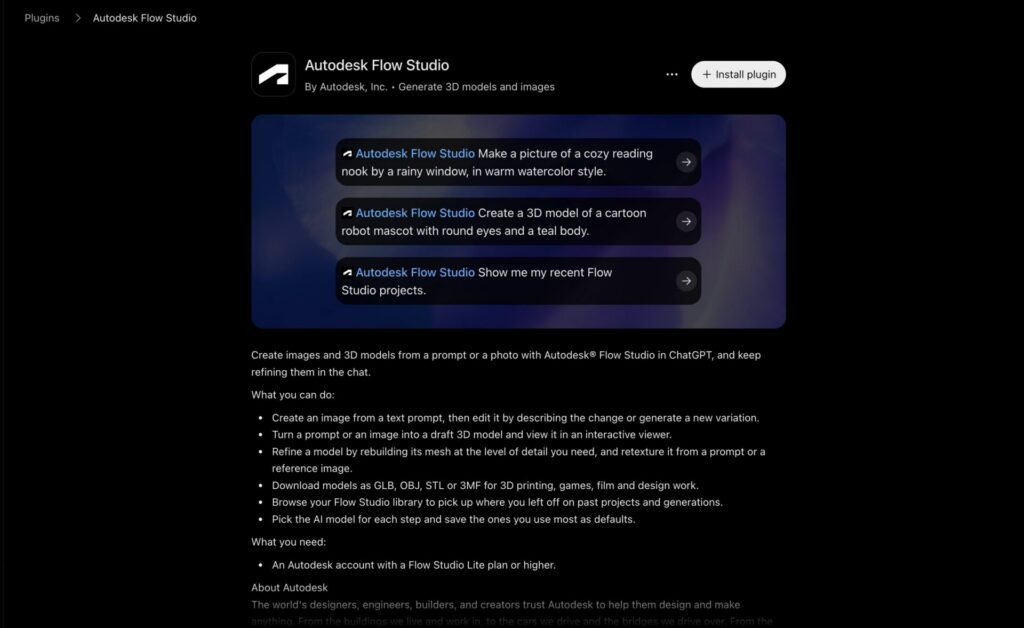
1. Add Flow Studio to ChatGPT
In ChatGPT, open Plugins, search Autodesk Flow Studio and click Install plugin. You can also find the Autodesk Flow Studio plugin here.
2. Sign in with Autodesk
Follow the sign-in instructions to connect your Flow Studio account.
3. Give it a try
Start a new ChatGPT conversation and mention @Flow Studio in your first message.
You can jump straight into creating something, or check that everything’s connected by asking:
“@Flow Studio Which plan am I on, and how many credits do I have left?”
4. Find your assets
When your model is ready, you can preview it in ChatGPT or ask for a download link. Your creations are also saved in your Flow Studio library, so you can use them in 3D Editor or download them for other projects.
Generating and refining assets uses your existing Flow Studio credits. You can check your remaining balance in ChatGPT whenever you need to.
Start creating with Flow Studio MCP
Maybe it’s a character you’ve been thinking about for months. A product idea scribbled in the corner of a notebook. Or a strange little object that could be the missing piece of your next scene.
So, what’s the first thing you’ll make?
Frequently asked questions
Yes. With the Autodesk Flow Studio MCP plugin, you can generate 3D models in ChatGPT from a text prompt or reference image. You can also refine existing models.
Install the Autodesk Flow Studio plugin, sign in to your Autodesk account, then start a new conversation and mention @Flow Studio in your first message. Describe what you want to create or attach a reference image to get started.
Yes. Text and Image to 3D can generate up to four draft variations at a time.
Your creations are saved in your Flow Studio library. You can preview them in ChatGPT, ask for a download link, or continue working with them in tools like 3D Editor + Canvas in the Flow Studio app.
Flow Studio Pro users can use the in-app Export to Fusion button to bring a model into Fusion for further refinement and 3D printing preparation.
Yes. You’ll need a ChatGPT account and a Lite, Standard, or Pro Autodesk Flow Studio account. Generating and refining assets uses available Flow Studio credits.