 Autodesk Media & Entertainment

The best stories take time. They’re shaped by the years you spend building your creative skills. When AI does too much, you lose the fun of the journey: taking on creative challenges and seeing them through.
Of course, some challenges aren’t rewarding. They’re just draining. But what feels like a grind is personal: a task that wears you down might be another creative’s favorite part.
New AI features in Autodesk 3ds Max, Maya, Flow Production Tracking, and Flow Capture let you choose what to hand off, so you can save your energy for the creative work you find fun in. With more time and energy, AI becomes a tool to learn a new skill. But AI isn’t the only teacher. You are, too. Your experience and creative instincts make you AI’s mentor. Build skills that make your tools more powerful, for you and for everyone you share them with.
What’s new
For artists:
- Autodesk Assistant in 3ds Max and Maya can now act in your scene. Use it to direct tasks like scene checks or UV mapping. It needs no setup. Open the Assistant window and start directing. This capability is available with your 3ds Max or Maya subscription in Tech Preview.
- Already have an agent? Autodesk 3ds Max MCP Server and Autodesk Maya MCP Server (Tech Previews) let you direct your scenes from an external client.
For production and post-production teams:
- Autodesk Assistant is in Flow Capture, where it answers how-to questions.
- In Flow Production Tracking, Autodesk Assistant answers how-to questions and provides read-only insights into production data (Tech Preview).
Read on to see how you stay in control, how each feature helps you move faster, and how your data is handled.
What’s new for artists
Direct tasks with Autodesk Assistant in 3ds Max and Maya, no setup needed
What is Autodesk Assistant in 3ds Max and Maya?
Autodesk Assistant is Autodesk’s agentic AI experience built directly in 3ds Max and Maya. It can help you:
- Answer questions using trusted documentation
- Analyze your scene
- New: Do tasks for you (Tech Preview)
Assistant comes with the skills Autodesk built and works out of the box. Open the Assistant window and start running tasks. Assistant helps users interact with, coordinate, and act on context. It’s available with your 3ds Max or Maya subscription. The ability to direct tasks with Assistant is in Tech Preview, which means you are getting early access to capabilities that will continue to improve over time.
How much creative control do I have over Autodesk Assistant?
You decide how much Autodesk Assistant does. Use it to answer how-to questions, to read your scene, or to run tasks on your behalf. Do one, all, or none.
- Access level: Choose how much access Assistant has: read-only or read-write (it can propose and run scripts in your scene and is off by default).
- Preview and approve: No scripts run until you click “Allow”.
- Undo: Each agent action is a single undo step.
- Safe Mode: Assistant blocks scripts that reach outside your scene to read, change or delete files on your computer or run system commands. Safe Mode is on by default.
Learn more about Assistant preferences for 3ds Max and Maya.
What can I do with Autodesk Assistant?
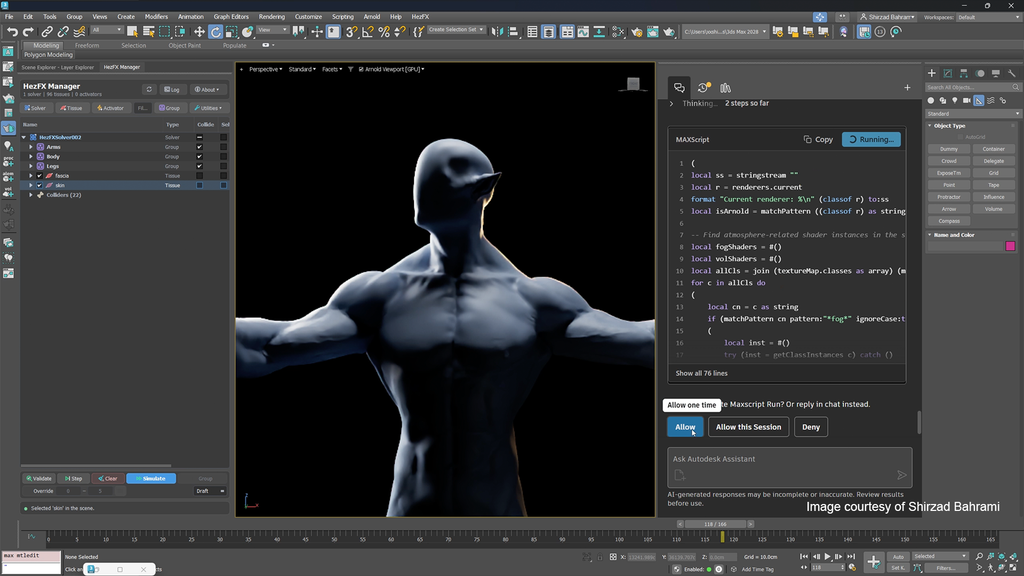
That’s up to you. What counts as tedious, outside your wheelhouse, or too technical is your call. In this example, artist Shirzad Bahrami uses Assistant in 3ds Max for pre-flight checks on his creature.
Before Autodesk Assistant: Shirzad runs pre-flight checks like scene cleanup and material management manually, which eats time he’d rather spend on artistic work.
Now: Shirzad asks Assistant to handle scene and geometry cleanup, and material management. He reviews the changes, adjusts what needs a human eye, and gets back to work that needs his expertise. Shirzad also explores the scene freely and orbits around the creature using the new Arnold viewport.
Shirzad’s example shows what he finds tedious: scene pre-flight checks. For a modeler, it might be something like UV mapping. The approach is the same. You direct Assistant, review the result, and iterate, so you stay in control of the outcome. Have an idea for a custom UI? Ask Assistant to build it. Procedural workflows or USD feel too technical? Direct Assistant to use them for you and benefit from what they offer.
How does Autodesk Assistant use my data?
User prompts and conversation history submitted to Autodesk Assistant are not shared with third-party model providers for training their models. See the Autodesk Assistant AI transparency card for details on privacy and security safeguards.
Connect your own agent with 3ds Max and Maya MCP Servers
What are Autodesk 3ds Max MCP Server and Autodesk Maya MCP Server?
A new Autodesk 3ds Max MCP Server and Autodesk Maya MCP Server (Tech Previews) enable you to use an external client you already work with to control 3ds Max and Maya. Your agent can draw on the skills you’ve built and the information that lives outside your scene.
MCP, the Model Context Protocol, is a standard way for AI agents to discover, understand, and use tools, data, and workflows. MCP servers connect AI systems to software capabilities, enabling supported workflows through natural language.
How is Autodesk Assistant different from 3ds Max and Maya MCP Servers?
| Autodesk Assistant | 3ds Max and Maya MCP Servers | |
| Setup | None. Autodesk Assistant is built in. Open the window and start. | Connect your external client through 3ds Max and Maya MCP Desktop Servers. |
| Cost | Assistant is available with your 3ds Max and Maya subscription. | 3ds Max and Maya MCP are available with your subscription. You pay for your external agent. |
| Skills | Built by Autodesk. | Built by you in your external agent. |
| Trust | User prompts and conversation history submitted to Autodesk Assistant are not shared with third-party model providers for training their models. See the Autodesk Assistant AI transparency card for details on privacy and security safeguards. | MCP servers mediate access using identity and permissions, validate requests, and enforce execution boundaries. When enabled, authentication and authorization ensure secure access control and predictable behavior. |
| Best for | Artists who want to direct common tasks right away. | For artists and teams who already have an agent and skills they want to keep using, or who want to draw on knowledge that lives outside the scene. |
How much control do I have when bringing my own agent?
Like Autodesk Assistant, you can set your MCP preferences:
- Access level: Choose how much your agent has: read-only or read-write (it can propose and run scripts in your scene and is off by default).
- Preview and approve: No scripts run until you click “Allow”.
- Undo: Each agent action is a single undo step.
- Authentication: Choose to create a token each time the server starts or keep the same token until you ask for a new one.
Learn more about MCP preferences for 3ds Max and Maya.
What can I do faster by bringing my own agent?
You can do everything you can do with Autodesk Assistant, and more. The “more” comes from what your agent knows and can reach outside 3ds Max and Maya. Need research before you start? Your agent can pull it into your pipeline early, so it’s in front of you before you begin. Shots scattered across your asset library? Your agent can connect to it and assemble the shots for review. In this example, Shirzad uses Maya MCP to perform unit testing during tool development.
Before Maya MCP: Shirzad tests his tools manually, switching between his code editor and Maya to run the tool, check the result, and fix it, repeatedly. It’s slow work that takes him over an hour, and it pulls him away from artistic work.
Now: Shirzad connects Claude to Maya through Maya MCP Server. It runs the heavy, time-consuming unit tests, reports what passed, what failed, and what needs his attention. He reviews the results, decides what to change, and spends his time on the tool itself. The workflow now takes him about five minutes.
How does Autodesk use my data if I use 3ds Max or Maya MCP?
MCP servers mediate access using identity and permissions, validate requests, and enforce execution boundaries. When enabled, authentication and authorization ensure secure access control and predictable behavior.
Learn more about MCP preferences for 3ds Max and Maya.
What’s new for production and post-production teams
Autodesk Assistant isn’t only for artists working in a scene. It’s also in the tools production teams use every day, where the grind looks different: hunting for the right information, or figuring out what to work on next. Whether you’re sharing dailies with your team or checking what’s next on a VFX shot, Assistant helps you find what you need in Flow Capture and Flow Production Tracking, so you can spend less time searching and more time doing.
Find your way in Flow Capture
What can Autodesk Assistant help me with in Flow Capture?
Let’s say you’re getting dailies ready for review but can’t remember how to share a playlist with your team.
Before Autodesk Assistant: You’d have to stop what you’re doing, dig through product documentation or a tutorial, and find the right instructions before getting back to your work.
Now: Just ask, “How do I share a playlist with my team?” Assistant scans product documentation and provides you with the instructions you need, so you can pick up right where you left off.
And Assistant isn’t our first step toward bringing AI into Flow Capture. We’re also exploring how AI can make everyday production workflows easier with Smart Search and Actions (Tech Preview), helping you find footage using natural-language searches and automate repetitive tasks. Learn more about AI-powered video search and workflow automation in Flow Capture.
How does Autodesk Assistant use my data in Flow Capture?
User prompts and conversation history submitted to Autodesk Assistant are not shared with third-party model providers for training their models. See the Autodesk Assistant AI transparency card for details on privacy and security safeguards.
Stay on top of your work in Flow Production Tracking
What can Autodesk Assistant help me in Flow Production Tracking?
Whether you’re looking for help with a workflow or trying to find information about your production, Autodesk Assistant helps you get answers by asking questions in natural language.
Help and support (Available to everyone): Need help figuring out how to do something in Flow Production Tracking? Assistant can answer how-to questions and guide artists, coordinators, and supervisors using official Autodesk documentation. This help and support experience is available to everyone, with no additional setup required.
Production data questions (Available in Tech Preview):Assistant can also help you find information about your production directly from your Flow Production Tracking site. This capability is currently in Tech Preview and must be enabled by a site administrator for selected permission groups.
For example, imagine you’re an animator starting your day and want to know which shots or tasks need your attention.
Before Autodesk Assistant: You’d navigate through pages, set up filters, and check your assignments to see what’s still in progress.
Now: Simply ask, “Which of my assigned tasks are still in progress?” Assistant retrieves and summarizes the relevant information from your Flow Production Tracking site, helping you see what’s on your plate so you can focus on your next shot.
When site data access is enabled, Assistant respects each user’s existing permissions and can only retrieve information they’re authorized to see. Access is read-only, meaning Assistant can help you find and summarize production information, but it can’t modify records or reassign tasks.
How does Autodesk Assistant use my data in Flow Production Tracking?
User prompts and conversation history submitted to Autodesk Assistant are not shared with third-party model providers for training their models. See the Autodesk Assistant AI transparency card for details on privacy and security safeguards.
Come as you are
Every workflow has parts you love and parts you’d happily hand off, and which is which is different for every artist and production team. For years, you did them all anyway, and the steps that wore you down took time from the work you wanted to spend time on.
AI in 3ds Max, Maya, Flow Capture, and Flow Production Tracking save your energy for the craft, ready when you need help and out of your way when you don’t. That’s time back for animating a stronger performance, iterating lighting, or reviewing a shot, and headspace for whatever else you’d rather be doing.